
EVPL Maker Studio
EVPL Central, 2nd Floor · Open Hours: Monday 5 – 7 pm · Thursday 9:30 – 11:30 am · Also available by appointmentEVPL Maker Studio is a space for DIY artistic expression, creative exploration, and educational experimentation. Whatever you're creating, EVPL Maker Studio offers free access to equipment, software, and other resources to help you discover new creative passions and rediscover old ones.
View our equipment by project category below, or explore EVPL Maker Central's complete equipment list. If you are exploring a new interest or hobby, we encourage you to review instructional videos or manuals to feel more confident as you begin your project.
Equipment Categories

Printing & Creating
View All Equipment ↗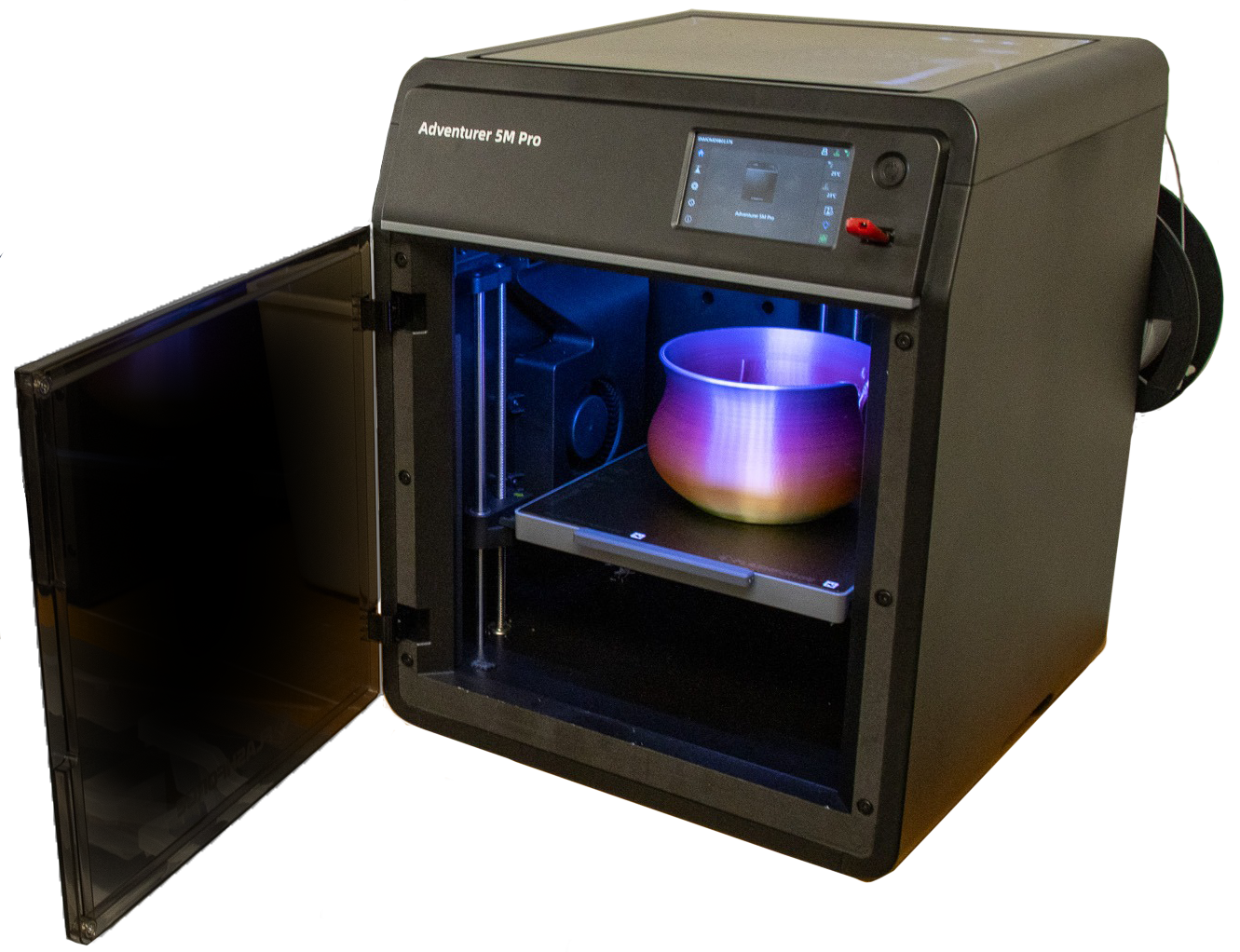
Flashforge Adventurer 5M Pro 3D Printer
Creates a three-dimensional object from a digital file, one thin layer of material at a time. Please note, 3D prints typically take multiple hours.
A 3D printer is a machine that creates a three-dimensional object from a digital file by building it up one thin layer of material at a time. Please note, 3D printing is not a quick process. 3D prints typically take multiple hours.
Equipment in the Maker Studio
- 2 Flashforge Adventurer 5M Pro 3D printers
What you will need
- A 3D file to begin 3D printing
Acceptable File Types
- .STL
Printing Dimensions
- Maximum print size is 220 × 220 × 220 mm, or roughly 8″ × 8″ × 8″
Material
- PLA filament
- The Maker Studio does not allow the use of outside filament
Color Options
- Choose from a selection of filament colors. Ask Maker Studio staff to see the available colors.
How to Get Started
- Visit the Maker Studio during Open Hours, or submit our reservation form to make an appointment.
Things to Know
- 3D print jobs are limited to 6 hours each
- You will be notified by email when your item is ready for pickup
- Completed items will be held for 14 days, after which they become the property of EVPL
Resources
- Tinkercad: Explore this free, easy-to-use web app for 3D design. tinkercad.com
- Thingiverse: Browse thousands of free 3D designs you can download and print. thingiverse.com
- Blender: Free and open-source 3D creation software, available on the Maker Studio computers. blender.org
- LinkedIn Learning: Explore over 16,000 video courses on topics including 3D modeling. To get started, log in with your EVPL card number and PIN.
Need help getting started?
Check out our events calendar for upcoming Maker Studio programs, or schedule a one-on-one Maker Tech appointment using our reservation form.
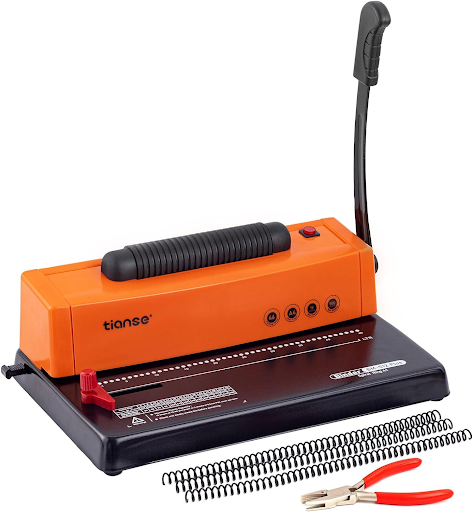
Coil Binding Machine
Punches evenly spaced holes along the edge of paper and inserts a plastic coil to create a professional, book-like binding for booklets, reports, calendars, and more.
A coil binding machine punches evenly spaced holes along the edge of paper and inserts a plastic coil to create a professional, book-like binding. It is useful for creating booklets, reports, calendars, presentations, and other bound documents.
Equipment in the Maker Studio
- Coil Binding Machine
What you will need
- Paper or printed documents to bind
- Front and back covers, if desired
Acceptable Materials
- Standard paper and cardstock suitable for punching
Materials
- The Maker Studio does not provide paper or printed materials. Customers will need to bring their own materials.
- The Maker Studio provides black binding coils and covers for use with the machine.
Cost
- There is no charge to use the coil binding machine.
How to Get Started
- The coil binding machine is available for in-library use during normal business hours with an appointment, and on a walk-in, first-come, first-served basis during Maker Studio Open Hours.
- Submit our reservation form to request the coil binding machine.
Things to Know
- Make sure your documents are printed, collated, and ready to be punched before using the machine.
- The maximum number of pages that can be punched or bound at one time depends on the machine and paper thickness.
- If it is your first time using the coil binding machine or you need assistance, a staff member will be available to assist you.
- Customers are responsible for ensuring the completion of their project.
Resources
- Coil Binding Instructions: Review the manufacturer’s instructions for proper punching, coil selection, and binding techniques.
- Maker Studio Programs: Check the events calendar for programs that can help you learn more about document creation and finishing techniques.
Need help getting started?
Check out our events calendar for upcoming Maker Studio programs, or schedule a one-on-one Maker Tech appointment using our reservation form.
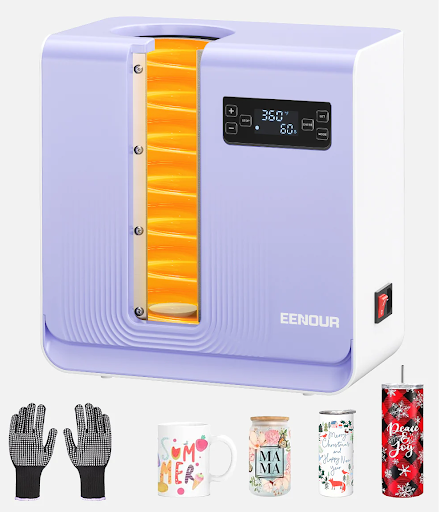
Tumbler Heat Press
Applies heat and pressure to permanently transfer sublimation designs onto tall, thin, sublimation-coated tumblers.
A tumbler heat press is a machine that applies heat and pressure to transfer designs onto compatible tumblers. It uses a heated element to permanently transfer sublimation designs onto specially coated tumblers.
Equipment in the Maker Studio
- Tumbler Heat Press
What you will need
- A tall, thin, sublimation-compatible tumbler
- A printed sublimation design
- Heat-resistant tape
Acceptable File Types
- For sublimation designs: .PNG, .JPG, .JPEG, .PDF, and other file types supported by the software used to prepare your design
Materials
- The Maker Studio does not provide tumblers. Customers will need to bring their own tall, thin, sublimation-compatible tumbler.
- The Maker Studio provides sublimation paper and heat-resistant tape, as available.
Cost
- There is no charge to use the tumbler heat press.
How to Get Started
- The tumbler heat press is available for in-library use during normal business hours with an appointment, and on a walk-in, first-come, first-served basis during Maker Studio Open Hours.
- Submit our reservation form to request the tumbler heat press.
Things to Know
- The tumbler heat press is intended for tall, thin tumblers that fit the machine’s heating area. Flared tumblers will not work.
- Tumblers must be specifically designed for sublimation. Regular stainless-steel tumblers will not work unless they have a compatible sublimation coating.
- Designs should be printed using sublimation ink and sublimation paper. The Maker Studio has an Epson sublimation printer.
- Remove lids, straws, and other accessories before placing the tumbler in the heat press.
- Follow the recommended temperature, pressure, and pressing time for the specific tumbler being used.
- If it is your first time using the tumbler heat press or you need assistance, a staff member will be available to help you get started.
- Customers are responsible for ensuring the completion of their project.
Resources
- Sublimation Design Software: Use a graphics or design program to create and prepare artwork for sublimation.
- Sublimation Printing Guides: Review recommended settings for sublimation paper, ink, and compatible tumblers before beginning your project.
Need help getting started?
Check out our events calendar for upcoming Maker Studio programs, or schedule a one-on-one Maker Tech appointment using our reservation form.
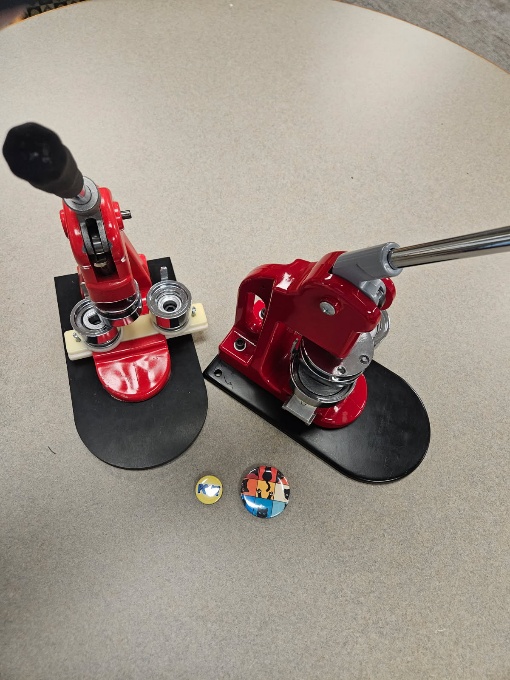
Button Maker
Turns printed artwork, photos, or designs into custom pin-back buttons. Available in 1.25″ and 2.5″ sizes.
A button maker is a machine that turns printed artwork, photos, or designs into custom pin-back buttons. The machine presses the artwork together with a metal button shell, clear plastic cover, and pin-back component to create a finished button.
Equipment in the Maker Studio
- 1.25″ Button Maker
- 2.5″ Button Maker
- Circular cutting tools
What you will need
- Artwork, photos, or designs to use on your buttons
- Button-making supplies in the appropriate size
Acceptable File Types
- For digital designs: .PNG, .JPG, .JPEG, .PDF, and other common image file types
Materials
- The Maker Studio provides button-making supplies for the available 1.25″ and 2.5″ sizes, up to 10 buttons. If you need more than 10 buttons, please supply your own button-making materials.
- Customers are responsible for providing their own artwork, photographs, or other designs.
Cost
- There is no charge to use the button makers.
How to Get Started
- Button makers are available for in-library use during normal business hours with an appointment, and on a walk-in, first-come, first-served basis during Maker Studio Open Hours.
- Submit our reservation form to request a button maker.
Things to Know
- The Maker Studio has button makers in 1.25″ and 2.5″ sizes. Make sure you select the correct size for your project.
- Artwork should be printed and trimmed to the appropriate size before using the button maker.
- The button maker requires multiple steps to assemble a button. Make sure each component is positioned correctly before pressing.
- Keep fingers clear of the pressing mechanism while operating the machine.
- If it is your first time using the button maker or you need assistance creating your buttons, a staff member will assist you.
- Customers are responsible for ensuring the completion of their project.
Resources
- Canva: Online design software that can be used to create artwork for buttons. canva.com
- Cricut Design Space: Installed on the Maker Studio computers.
Need help getting started?
Check out our events calendar for upcoming Maker Studio programs, or schedule a one-on-one Maker Tech appointment using our reservation form.
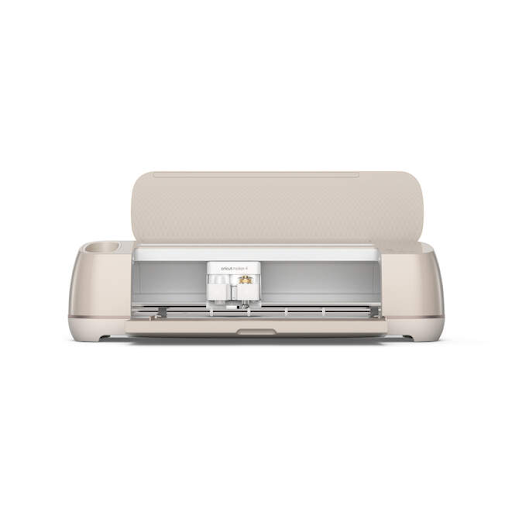
Cricut Machines & Heat Presses
We have a complete collection of Cricut cutting machines and heat presses for all your crafting needs - from vinyl cutting to mug pressing and everything in between.
Cricut Maker
A cutting machine that cuts, draws, or scores materials with precision. Use it to create stickers, designs for mugs and shirts, banners, and more.
A Cricut is a cutting machine that cuts, draws, or scores materials with precision using specialized blades and markers. Use a Cricut to create stickers, designs for mugs and shirts, banners, and more.
Equipment in the Maker Studio
- 2 Cricut Maker machines
- 1 Cricut Explore Air 2 machine
What you will need
- A design that you create or upload in Cricut Design Space, Cricut’s free design software
- All Maker Studio computers have access to Cricut Design Space
Acceptable File Types
- .SVG, .PNG, .JPG, .PDF
Project Dimensions
- Cricut cutting mats in the Maker Studio are available in 12″ × 12″ and 12″ × 24″
Materials
- The Maker Studio has a variety of Cricut materials available for patron use free of charge: cardstock, construction paper, heat transfer vinyl (HTV), printable sticker paper, and vinyl sticker sheets. If you are completing a large project, we ask that you supply your own materials.
- Availability of the Library’s Cricut materials and colors varies
- You may use your own materials with the Cricut. Please make sure they are approved for use with the Cricut Maker.
How to Get Started
- Cricuts are available on a first-come, first-served walk-in basis during Maker Studio Open Hours, or by reservation. Reservations are required outside of Open Hours.
- Submit our reservation form to request a Cricut reservation.
Things to Know
- If it is your first time using the Cricut or you need assistance, we recommend making a Maker Tech appointment to ensure a staff member is available to assist you one-on-one.
- Customers are responsible for ensuring the completion of their project.
Resources
- Cricut Design Space: Free, easy-to-learn software that powers every Cricut cutting machine. Use it to upload or create your projects. The full version of Design Space is available on the Maker Studio computers.
Need help getting started?
Check out our events calendar for upcoming Maker Studio programs, or schedule a one-on-one Maker Tech appointment using our reservation form.
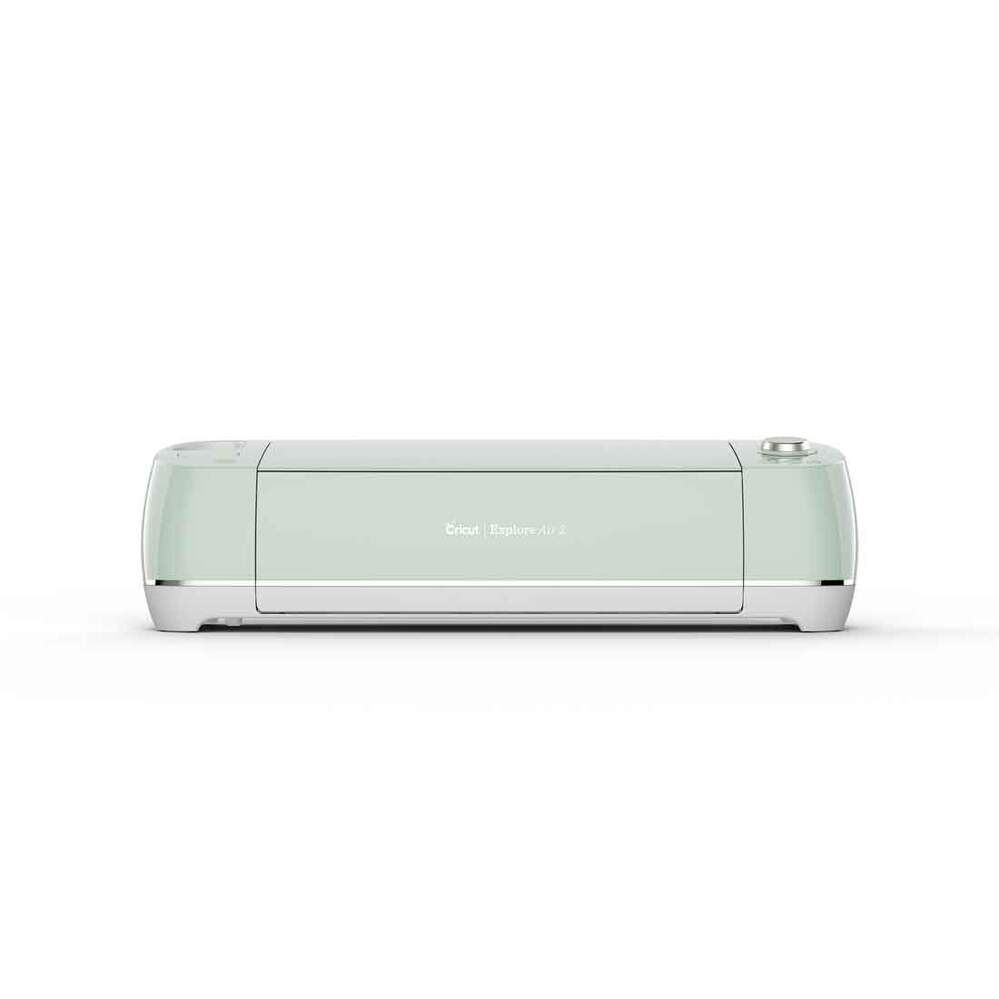
Cricut Explore Air 2
A cutting machine that cuts, draws, or scores materials with precision. Use it to create stickers, designs for mugs and shirts, banners, and more.
A Cricut is a cutting machine that cuts, draws, or scores materials with precision using specialized blades and markers. Use a Cricut to create stickers, designs for mugs and shirts, banners, and more.
Equipment in the Maker Studio
- 2 Cricut Maker machines
- 1 Cricut Explore Air 2 machine
What you will need
- A design that you create or upload in Cricut Design Space, Cricut’s free design software
- All Maker Studio computers have access to Cricut Design Space
Acceptable File Types
- .SVG, .PNG, .JPG, .PDF
Project Dimensions
- Cricut cutting mats in the Maker Studio are available in 12″ × 12″ and 12″ × 24″
Materials
- The Maker Studio has a variety of Cricut materials available for patron use free of charge: cardstock, construction paper, heat transfer vinyl (HTV), printable sticker paper, and vinyl sticker sheets. If you are completing a large project, we ask that you supply your own materials.
- Availability of the Library’s Cricut materials and colors varies
- You may use your own materials with the Cricut. Please make sure they are approved for use with the Cricut Maker.
How to Get Started
- Cricuts are available on a first-come, first-served walk-in basis during Maker Studio Open Hours, or by reservation. Reservations are required outside of Open Hours.
- Submit our reservation form to request a Cricut reservation.
Things to Know
- If it is your first time using the Cricut or you need assistance, we recommend making a Maker Tech appointment to ensure a staff member is available to assist you one-on-one.
- Customers are responsible for ensuring the completion of their project.
Resources
- Cricut Design Space: Free, easy-to-learn software that powers every Cricut cutting machine. Use it to upload or create your projects. The full version of Design Space is available on the Maker Studio computers.
Need help getting started?
Check out our events calendar for upcoming Maker Studio programs, or schedule a one-on-one Maker Tech appointment using our reservation form.

Cricut Mug Press
A heat press that permanently transfers sublimation designs onto compatible 12 or 15 oz ceramic mugs.
The Cricut Mug Press is a heat press designed to apply sublimation designs to compatible ceramic mugs. It uses controlled heat to permanently transfer a printed design onto the mug’s sublimation coating.
Equipment in the Maker Studio
- 2 Cricut Mug Presses
What you will need
- A compatible sublimation mug (12 or 15 ounces)
- A printed sublimation design
- Sublimation paper
- Heat-resistant tape
Acceptable File Types
- For digital designs: .PNG, .JPG, .JPEG, .SVG, .PDF, and other common image file types supported by the design software being used
Materials
- The Maker Studio will provide up to one (1) mug. If you would like more than one mug, please bring your own Cricut-compatible sublimation mugs.
- The Maker Studio may provide sublimation paper and heat-resistant tape, as available.
Cost
- There is no charge to use the Cricut Mug Press.
How to Get Started
- The Cricut Mug Press is available for in-library use during normal business hours with an appointment, and on a walk-in, first-come, first-served basis during Maker Studio Open Hours.
- Submit our reservation form to request the Cricut Mug Press.
Things to Know
- The Cricut Mug Press is designed for compatible sublimation mugs. Standard ceramic mugs that are not designed for sublimation will not work.
- Mugs should have a smooth, straight-sided surface and be within the size specifications recommended for the Cricut Mug Press (12 or 15 ounces).
- Designs must be printed using sublimation ink on sublimation paper.
- The design should be trimmed and securely attached to the mug with heat-resistant tape before pressing.
- Keep the mug handle and any other parts outside the pressing area, as directed, before beginning the transfer.
- The mug and mug press become extremely hot during use. Allow the mug to cool completely before handling it without heat protection.
- If it is your first time using the Cricut Mug Press or you need assistance preparing your design or operating the machine, a staff member will help you.
- Customers are responsible for ensuring the completion of their project.
Resources
- Cricut Design Space: Design software that can be used to create and prepare artwork for Cricut projects. The full version of Design Space is available on the Maker Studio computers.
- Cricut Support: Find instructions, tutorials, and troubleshooting information for the Cricut Mug Press.
Need help getting started?
Check out our events calendar for upcoming Maker Studio programs, or schedule a one-on-one Maker Tech appointment using our reservation form.
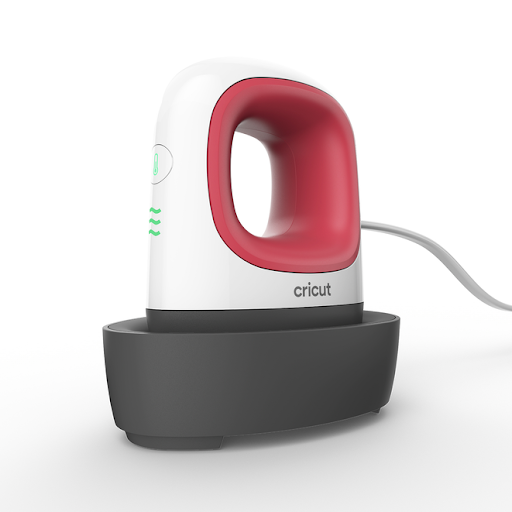
Cricut Easy Press Mini
Compact heat press for small or uniquely-shaped projects with hard-to-reach spaces. For pressing small designs onto T-shirts or working around buttons & seams.
- Compact heat press for small or uniquely-shaped projects with hard-to-reach spaces
- For pressing small designs onto T-shirts or working around buttons & seams
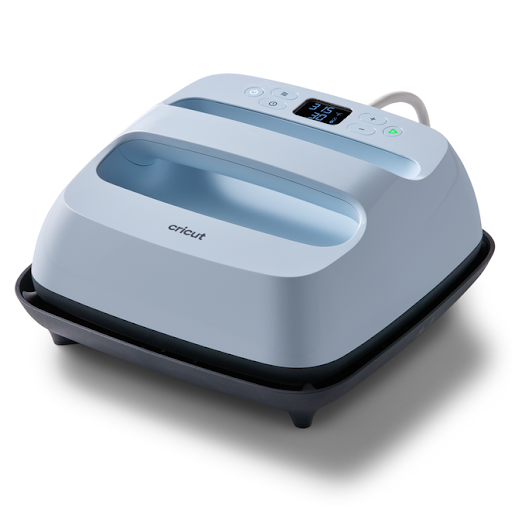
Cricut 9x9 Easy Press
9 in x 9 in size is ideal for basic T-shirts, tote bags, pillows, aprons, and more. Professional heat-transfer results without the guesswork. Advanced heat plate design with ceramic-coated surface. Compatible with all Cricut Infusible Ink™ products and most major brands of iron-on material. Precise temperature control up to 400℉ (205°C).
- 9 in x 9 in size is ideal for basic T-shirts, tote bags, pillows, aprons, and more
- Professional heat-transfer results without the guesswork
- Advanced heat plate design with ceramic-coated surface
- Compatible with all Cricut Infusible Ink™ products and most major brands of iron-on material
- Precise temperature control up to 400℉ (205°C)
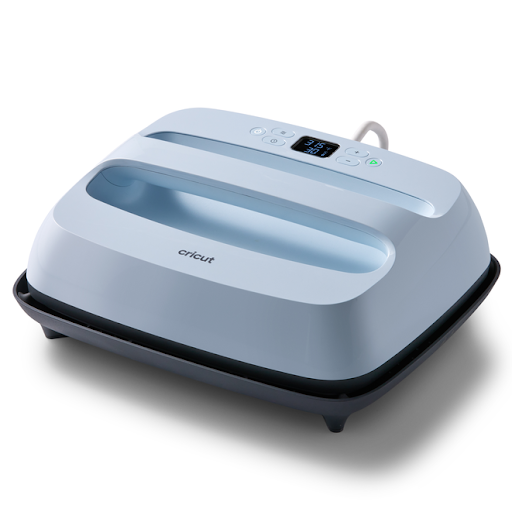
Cricut 12x10 Easy Press 3
12 in x 10 in size is ideal for pressing large designs onto sweatshirts, banners, blankets & more. Professional heat-transfer results without the guesswork. Advanced heat plate design with ceramic-coated surface. Compatible with all Cricut Infusible Ink™ products and most major brands of iron-on material. Precise temperature control up to 400℉ (205°C).
- 12 in x 10 in size is ideal for pressing large designs onto sweatshirts, banners, blankets & more
- Professional heat-transfer results without the guesswork
- Advanced heat plate design with ceramic-coated surface
- Compatible with all Cricut Infusible Ink™ products and most major brands of iron-on material
- Precise temperature control up to 400℉ (205°C)
Fiber Arts & Embroidery
View All Equipment ↗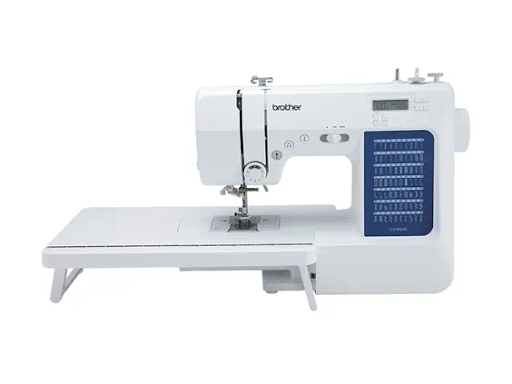
Brother Sewing Machine
Brother CS7000X Quilter’s Edition. A two-in-one machine that can sew like a regular sewing machine and stitch decorative designs.
An embroidery/sewing machine is a two-in-one machine that can sew like a regular sewing machine and stitch decorative designs.
Equipment in the Maker Studio
- Brother CS7000X Quilter’s Edition Sewing Machine
- Bernina 770 QE Embroidery/Sewing Machine
What you will need
- Fabric to embroider or sew
- A digital design, if embroidering
Acceptable File Types
- For embroidery: .EXP, .DST, .PES, .PEC, .JEF, .SEW, .PCS, and .XXX
Embroidery Hoop Sizes
We have several embroidery hoop sizes to choose from:
| Hoop | Size | Best for |
|---|---|---|
| Small Hoop | 72 × 50 mm (2.8 × 2.0 in) | Sleeves, cuffs, and very small logos |
| Medium Hoop | 100 × 130 mm (3.9 × 5.1 in) | Standard mid-size motifs |
| Large Oval Hoop | 145 × 255 mm (5.7 × 10.0 in) | Average to large designs; versatile, everyday large-scale patterns with a ratchet-tension lock |
| Midi Hoop | 265 × 165 mm (10.4 × 6.5 in) | |
| Maxi Hoop | 400 × 210 mm (15.7 × 8.3 in) | Largest continuous designs |
Materials
- The Maker Studio does not provide fabric. Customers will need to bring their own material.
- The Maker Studio does provide thread, replacement needles, and stabilizer.
Cost
- There is no charge to use the sewing/embroidery machines.
How to Get Started
- Embroidery/sewing machines are available for in-library use during normal business hours with an appointment, and on a walk-in, first-come, first-served basis during Maker Studio Open Hours.
- Submit our reservation form to request an embroidery/sewing machine.
Things to Know
- If it is your first time using the embroidery/sewing machine or you need assistance, we recommend making a Maker Tech appointment to ensure a staff member is available to assist you one-on-one.
- Customers are responsible for ensuring the completion of their project.
Resources
- Ink/Stitch: Free, open-source extension for Inkscape that turns your artwork or design into an embroidery file. inkstitch.org
Need help getting started?
Check out our events calendar for upcoming Maker Studio programs, or schedule a one-on-one Maker Tech appointment using our reservation form.
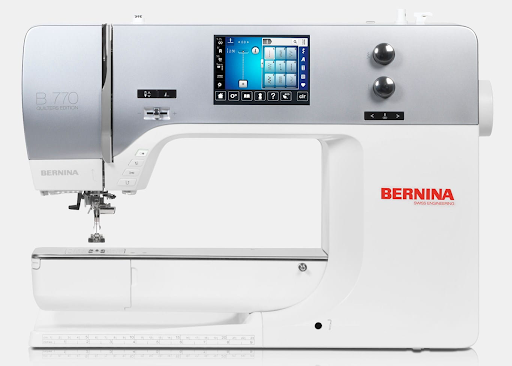
Bernina Embroidery Machine B770 Quilters Edition
A two-in-one embroidery/sewing machine that can sew like a regular sewing machine and stitch decorative designs, with hoops up to 15.7 × 8.3 inches.
An embroidery/sewing machine is a two-in-one machine that can sew like a regular sewing machine and stitch decorative designs.
Equipment in the Maker Studio
- Brother CS7000X Quilter’s Edition Sewing Machine
- Bernina 770 QE Embroidery/Sewing Machine
What you will need
- Fabric to embroider or sew
- A digital design, if embroidering
Acceptable File Types
- For embroidery: .EXP, .DST, .PES, .PEC, .JEF, .SEW, .PCS, and .XXX
Embroidery Hoop Sizes
We have several embroidery hoop sizes to choose from:
| Hoop | Size | Best for |
|---|---|---|
| Small Hoop | 72 × 50 mm (2.8 × 2.0 in) | Sleeves, cuffs, and very small logos |
| Medium Hoop | 100 × 130 mm (3.9 × 5.1 in) | Standard mid-size motifs |
| Large Oval Hoop | 145 × 255 mm (5.7 × 10.0 in) | Average to large designs; versatile, everyday large-scale patterns with a ratchet-tension lock |
| Midi Hoop | 265 × 165 mm (10.4 × 6.5 in) | |
| Maxi Hoop | 400 × 210 mm (15.7 × 8.3 in) | Largest continuous designs |
Materials
- The Maker Studio does not provide fabric. Customers will need to bring their own material.
- The Maker Studio does provide thread, replacement needles, and stabilizer.
Cost
- There is no charge to use the sewing/embroidery machines.
How to Get Started
- Embroidery/sewing machines are available for in-library use during normal business hours with an appointment, and on a walk-in, first-come, first-served basis during Maker Studio Open Hours.
- Submit our reservation form to request an embroidery/sewing machine.
Things to Know
- If it is your first time using the embroidery/sewing machine or you need assistance, we recommend making a Maker Tech appointment to ensure a staff member is available to assist you one-on-one.
- Customers are responsible for ensuring the completion of their project.
Resources
- Ink/Stitch: Free, open-source extension for Inkscape that turns your artwork or design into an embroidery file. inkstitch.org
Need help getting started?
Check out our events calendar for upcoming Maker Studio programs, or schedule a one-on-one Maker Tech appointment using our reservation form.
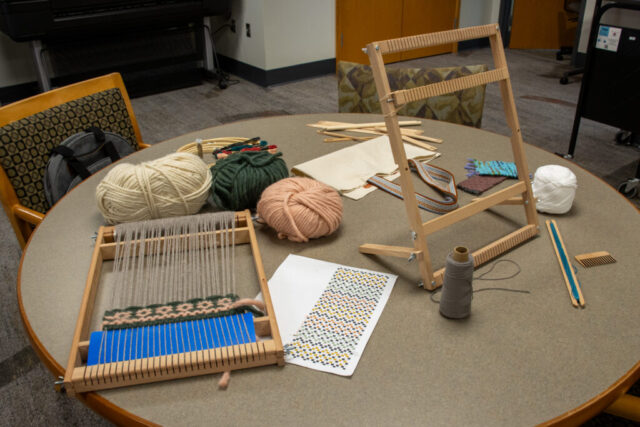
Looms & Embroidery Hoops
Looms and embroidery hoops are available in different sizes for weaving and hand-embroidery projects.
The Maker Studio has looms and embroidery hoops available in different sizes for weaving and hand-embroidery projects.
Equipment in the Maker Studio
- Looms in different sizes
- Embroidery hoops in different sizes
Things to Know
- Looms and embroidery hoops are for in-library use only and cannot be checked out.
- Ask a Maker Studio staff member about available sizes during Open Hours.
How to Get Started
- Visit the Maker Studio during Open Hours, or submit our reservation form to make an appointment.
Need help getting started?
Check out our events calendar for upcoming Maker Studio programs, or schedule a one-on-one Maker Tech appointment using our reservation form.
Audio & Video Production
View All Equipment ↗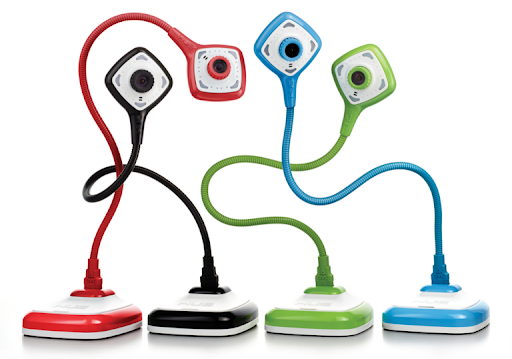
HUE USB Camera
A flexible, plug-and-play camera for capturing photos and videos, displaying documents or objects, and recording demonstrations or presentations.
The HUE USB Camera is a flexible, plug-and-play camera that can be used to capture photos and videos, display documents or objects, and record demonstrations or presentations. It can also be used as a document camera for viewing physical materials on a computer screen.
Equipment in the Maker Studio
- 3 HUE USB Cameras
What you will need
- The object, document, artwork, or other material you would like to photograph or record
Compatible Applications
- The HUE USB Camera can be used with compatible video conferencing, recording, presentation, and document camera software.
Materials
- The Maker Studio does not provide materials to photograph or record. Patrons will need to bring their own materials.
Cost
- There is no charge to use the HUE USB Camera.
How to Get Started
- HUE USB Cameras are available for in-library use during normal business hours with an appointment, and on a walk-in, first-come, first-served basis during Maker Studio Open Hours.
- Submit our reservation form to request a HUE USB Camera.
Things to Know
- If it is your first time using the HUE USB Camera or you need assistance connecting or using the camera, a staff member will be available to help you get started.
- Customers are responsible for ensuring the completion of their project.
Resources
- HUE Learning: Explore tutorials and activities for using the HUE camera for education, presentations, and creative projects. huehd.com
Need help getting started?
Check out our events calendar for upcoming Maker Studio programs, or schedule a one-on-one Maker Tech appointment using our reservation form.
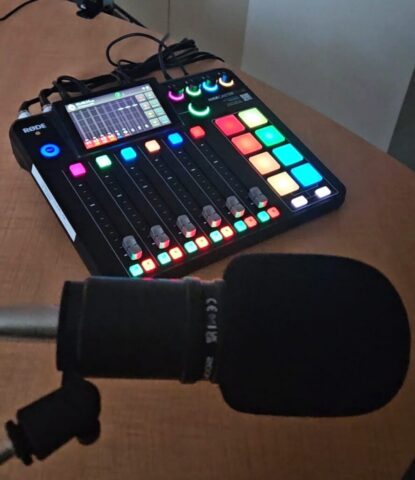
RØDECaster Pro II Podcasting Bundle
An integrated audio production studio for recording podcasts, interviews, voiceovers, music, and other audio projects, with four microphones and headphones.
The RØDECaster Pro II is an integrated audio production studio designed for recording podcasts, interviews, voiceovers, music, and other audio projects. It combines a mixer, audio interface, sound effects, recording capabilities, and microphone connections into one device.
Equipment in the Maker Studio
- RØDECaster Pro II Integrated Audio Production Studio
- Studio microphones (4)
- Headphones (4)
- Microphone stands and accessories
What you will need
- An audio project to record
- A script, outline, or other recording materials, if needed
- A USB storage device if you want to save or transfer your recordings
Acceptable File Types
- Audio recordings can be exported in common audio formats supported by the RØDECaster Pro II and the software used to edit your project.
- WAV files are recommended for high-quality audio editing.
Materials
- The Maker Studio provides the RØDECaster Pro II, microphones, headphones, and other standard audio equipment needed for recording.
- Bring your own USB storage device if you need to save your recordings for later use, or a laptop to save the recording directly.
Cost
- There is no charge to use the RØDECaster Pro II.
How to Get Started
- The RØDECaster Pro II is available for in-library use during normal business hours with an appointment. Submit our reservation form to request the RØDECaster Pro II.
Things to Know
- The RØDECaster Pro II can record multiple microphones at the same time, making it useful for podcasts, interviews, and group discussions.
- Wear headphones while recording to monitor audio levels and help identify unwanted background noise or other recording issues.
- Make a short test recording before beginning your full project.
- Save your recordings frequently and make sure you have enough storage space for your project.
- If it is your first time using the RØDECaster Pro II or you need assistance setting up microphones, adjusting audio levels, or recording, we recommend making a Maker Tech appointment to ensure a staff member is available to assist you one-on-one.
- Customers are responsible for ensuring the completion of their project.
Resources
- RØDE Support: Find user guides, tutorials, and other resources for the RØDECaster Pro II. rode.com
- RØDE Central: Companion software for managing and configuring compatible RØDE equipment.
- Audacity: Free, open-source audio recording and editing software that can be used to edit recorded audio. audacityteam.org
Need help getting started?
Check out our events calendar for upcoming Maker Studio programs, or schedule a one-on-one Maker Tech appointment using our reservation form.
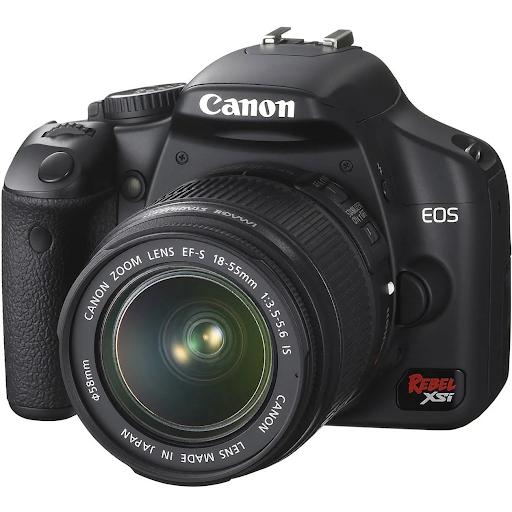
Canon EOS Rebel xSi
12.2 Megapixel APS-C CMOS sensor. 9-point wide-area phase detection AF. Up to 3.5 frames per second continuous shooting. 3.0-inch LCD with Live View mode. Optical viewfinder with high magnification. Compatible with all EF and EF-S lenses.
12.2 Megapixel APS-C CMOS sensor. 9-point wide-area phase detection AF. Up to 3.5 frames per second continuous shooting. 3.0-inch LCD with Live View mode. Optical viewfinder with high magnification. Compatible with all EF and EF-S lenses.

Canon EOS Rebel T7i
24.2MP APS-C CMOS sensor and DIGIC 7 image processor for high-resolution photos and videos. Full HD 1080p video recording at up to 60 fps. 45-point all cross-type phase-detect autofocus for fast and accurate focus. Dual Pixel CMOS AF for smooth, precise focus in Live View and video. Up to 6 fps continuous shooting. ISO range of 100-51200. 3.0-inch vari-angle touchscreen LCD for flexible shooting angles. Built-in Wi-Fi, NFC, and Bluetooth for easy wireless transfer and remote control.
24.2MP APS-C CMOS sensor and DIGIC 7 image processor for high-resolution photos and videos. Full HD 1080p video recording at up to 60 fps. 45-point all cross-type phase-detect autofocus for fast and accurate focus. Dual Pixel CMOS AF for smooth, precise focus in Live View and video. Up to 6 fps continuous shooting. ISO range of 100-51200. 3.0-inch vari-angle touchscreen LCD for flexible shooting angles. Built-in Wi-Fi, NFC, and Bluetooth for easy wireless transfer and remote control.
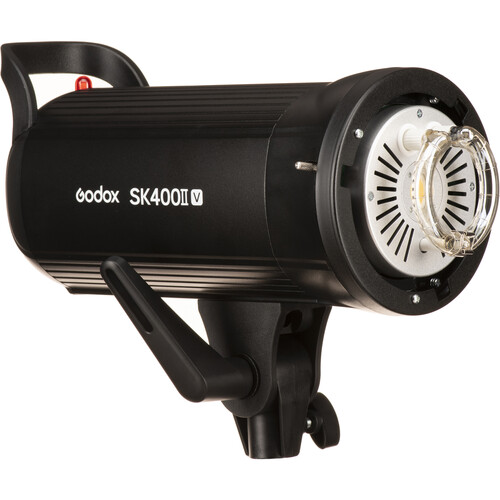
Professional Studio Flash
400Ws, 5600K Color Temperature. LED Modeling Lamp. 0.1 to 1.5 Second Recycling. Flash Duration: 1/800 to 1/2000 Second.
400Ws, 5600K Color Temperature. LED Modeling Lamp. 0.1 to 1.5 Second Recycling. Flash Duration: 1/800 to 1/2000 Second.
Design & Illustration
View All Equipment ↗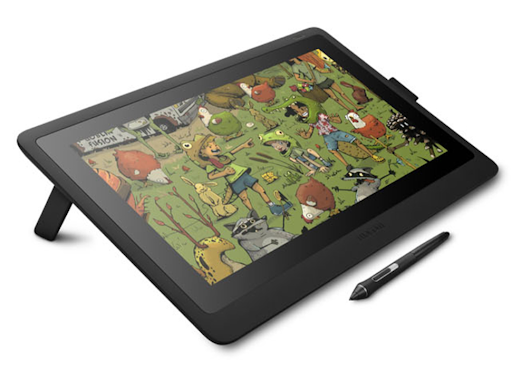
Wacom Cintiq Tablet
A pen display for drawing, sketching, painting, and editing digital artwork directly on its screen using a pressure-sensitive stylus.
A Wacom Cintiq tablet is a pen display that allows you to draw, sketch, paint, and edit digital artwork directly on its screen using a pressure-sensitive stylus. It works with compatible creative software and provides a more natural, hands-on way to create digital artwork.
Equipment in the Maker Studio
- Wacom Cintiq Tablet
- Wacom Pro Pen 2 stylus
What you will need
- Digital artwork or a project to work on
Compatible Applications
- Adobe Photoshop and Illustrator
- Clip Studio Paint
Materials
- The Maker Studio does not provide physical materials for digital artwork. Customers will need to bring any materials they wish to incorporate into their project.
Cost
- There is no charge to use the Wacom Cintiq Tablet.
How to Get Started
- Wacom Cintiq Tablets are available for in-library use during normal business hours with an appointment, and on a walk-in, first-come, first-served basis during Maker Studio Open Hours.
- Submit our reservation form to request a Wacom Cintiq Tablet.
Things to Know
- The Wacom Cintiq is designed for drawing and creating digital artwork directly on the tablet’s screen.
- Save your work frequently, and bring your own storage device to save your project for later.
- Do not press heavily on the tablet screen with the stylus or other objects.
- If it is your first time using the Wacom Cintiq or you need assistance connecting or using the tablet, a staff member will be available to help you get started.
- Customers are responsible for ensuring the completion of their project.
Resources
- Wacom Support: Find setup instructions, tutorials, drivers, and other resources for Wacom products. wacom.com
- Clip Studio Paint: Digital art software designed for illustration, comics, and animation. clipstudio.net
Need help getting started?
Check out our events calendar for upcoming Maker Studio programs, or schedule a one-on-one Maker Tech appointment using our reservation form.
Software
The Maker Studio computers provide access to a variety of software not available on our standard reservable computers. You will find software to create all kinds of projects, from editing music and films to designing games, logos, posters, and more.
Animation
- Adobe After Effects
- Adobe Animate
- Adobe Character Animator
- Blender
Audio Production (DAW)
- Adobe Audition
- Audacity
Game Development
- Blender
Graphic & Web Design
- Adobe After Effects
- Adobe Dreamweaver
- Adobe Illustrator
- Canva
Image Editing
- Adobe Lightroom
- Adobe Photoshop
Video Production
- Adobe After Effects
- Adobe Premiere Pro
Computers in the Maker Studio are available with an appointment, and on a walk-in, first-come, first-served basis during Maker Studio Open Hours. You can schedule a reservation up to one week in advance by calling 812-428-8200 or by using our reservation form.
Location & Hours
Located at EVPL Central, 2nd Floor
Open Hours:
- Monday 5 – 7 pm
- Thursday 9:30 – 11:30 am
Also available by appointment*
*Please make appointment requests at least 48 hours in advance. Groups of more than 10 people or students require a reservation made at least 2 weeks in advance. No appointments on Saturdays and Sundays.
Maker Studio Reservation Form
If you would like to reserve a piece of equipment, please fill out this form.
Access Reservation Form